Export from cTrader
Export your trade history as CSV from cTrader Web — no desktop app needed. Takes about a minute.
- 1
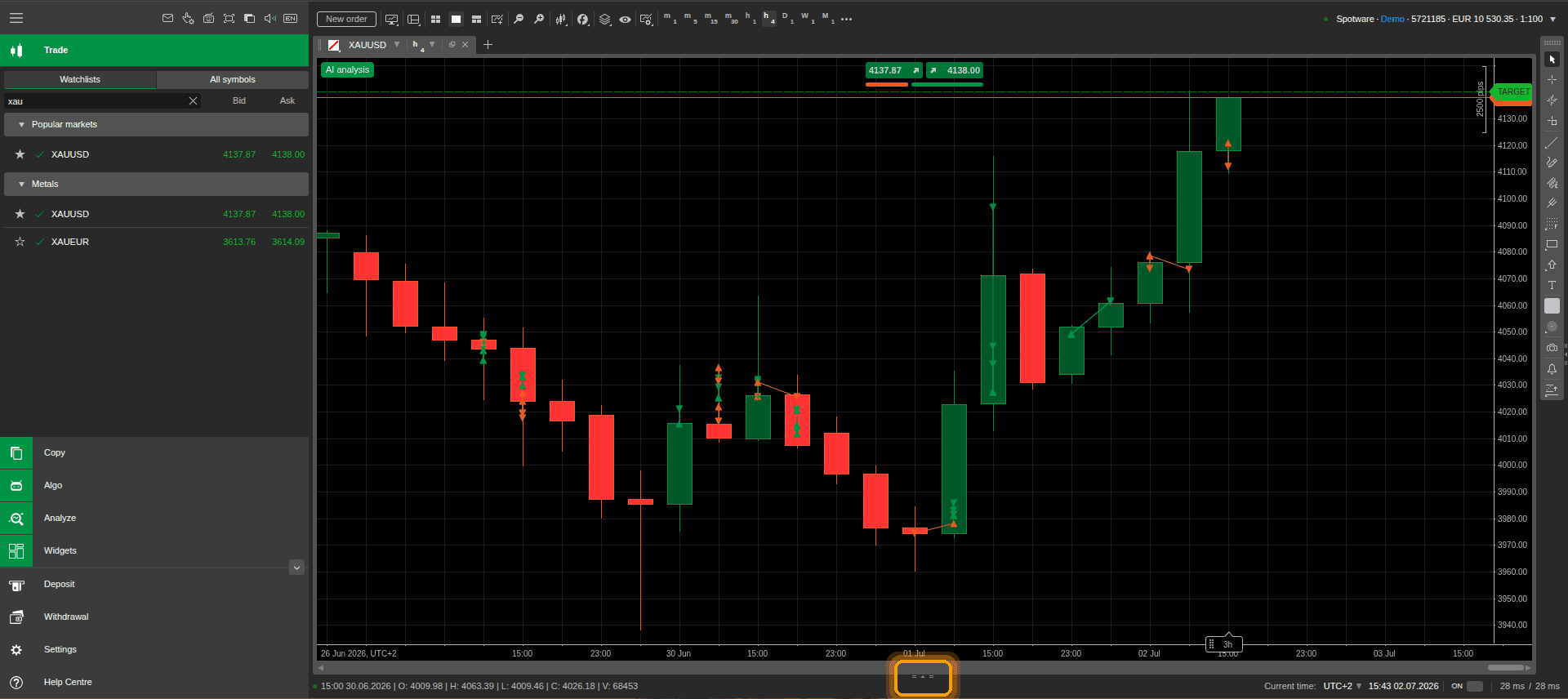
Open the bottom panel
In cTrader Web, click the small expand control at the bottom-center of the chart (highlighted below) to open the trading panel tray.
- 2
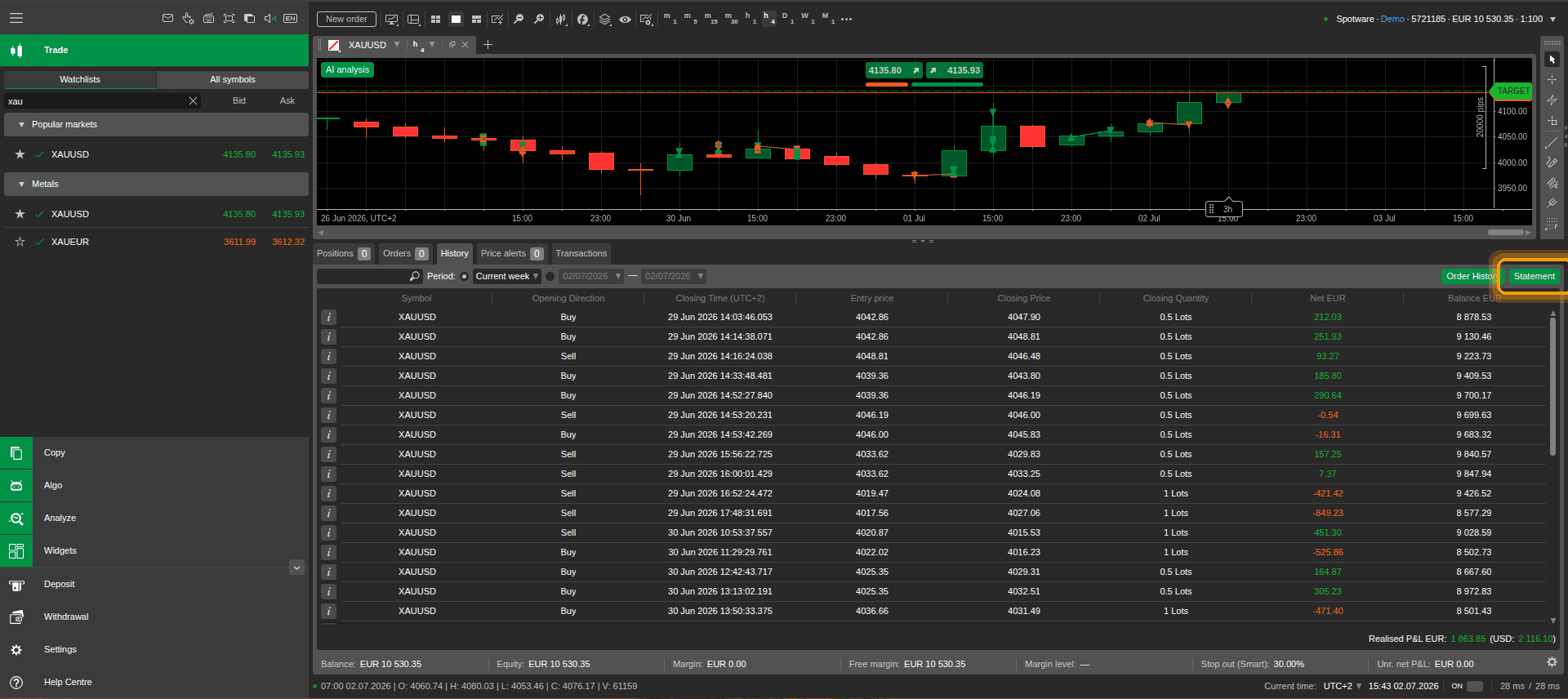
History tab → Statement
Switch to the History tab, set the period so it covers all the trades you want to import, then click Statement in the top-right corner of the panel (highlighted below).
- 3
Save the statement
The Account Statement opens in a new tab. Click Save (highlighted below) and the CSV downloads straight from your browser. Then import it in Retrace as “cTrader (CSV export)”.

cTrader exports timestamps with a (UTC+2) header timezone. Retrace reads it and converts everything automatically — you don't need to adjust anything.
The cTrader CSV export does not include stop loss or take profit levels, so they won't be drawn on your charts from this import. You can add them to a trade manually after importing.